
IPad Photo Booths
iPad photo booths are compact, stylish, and easy to use, making them perfect for any event. With quick setup, instant sharing, and fun digital features, they capture memories effortlessly while keeping guests entertained.
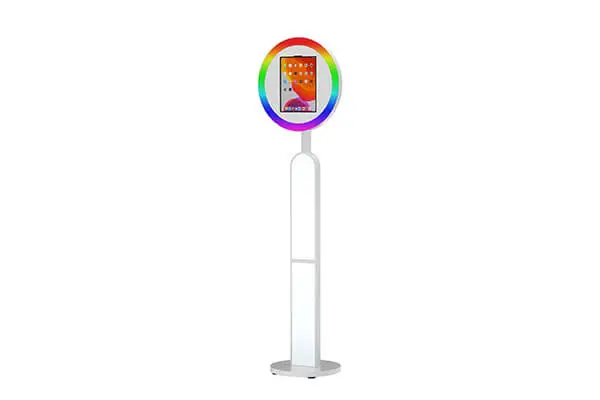
IPad Photo Booths
Oval Vintage IPad Photo Booth
IPad Photo Booth
Starting at$1, 999
Oval IPad Photo Booth with Aluminum Case
IPad Photo Booth
Starting at$1, 999Round IPad Photo Booth with Aluminum Case
IPad Photo Booth
Starting at$1, 999
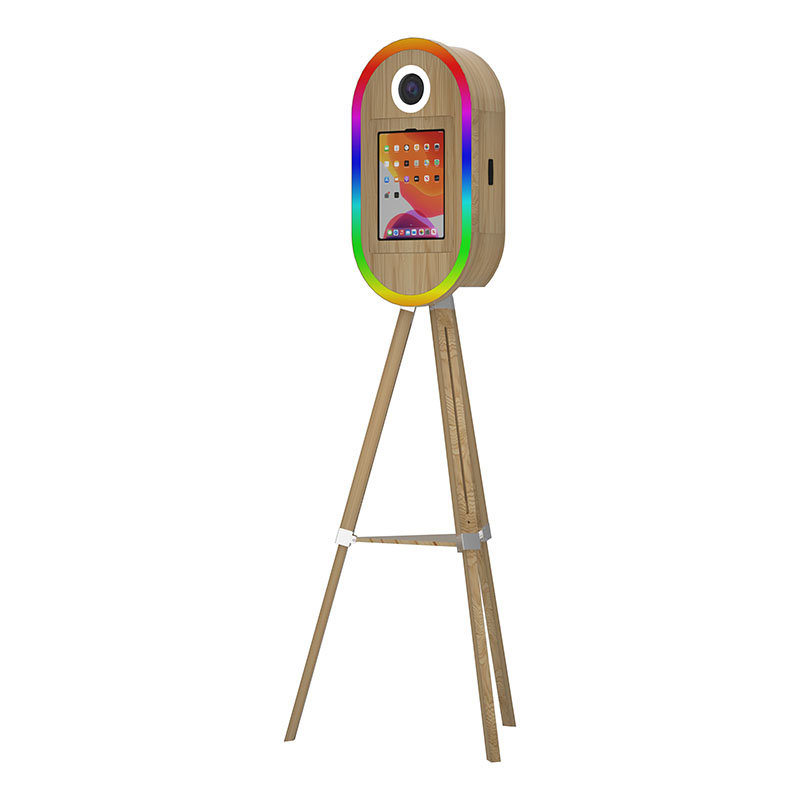
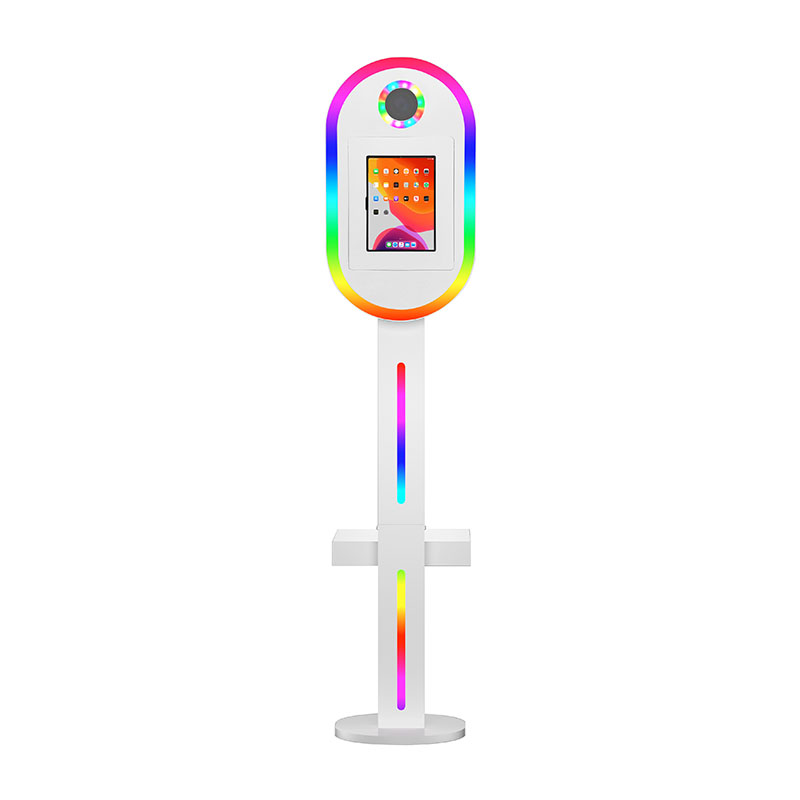
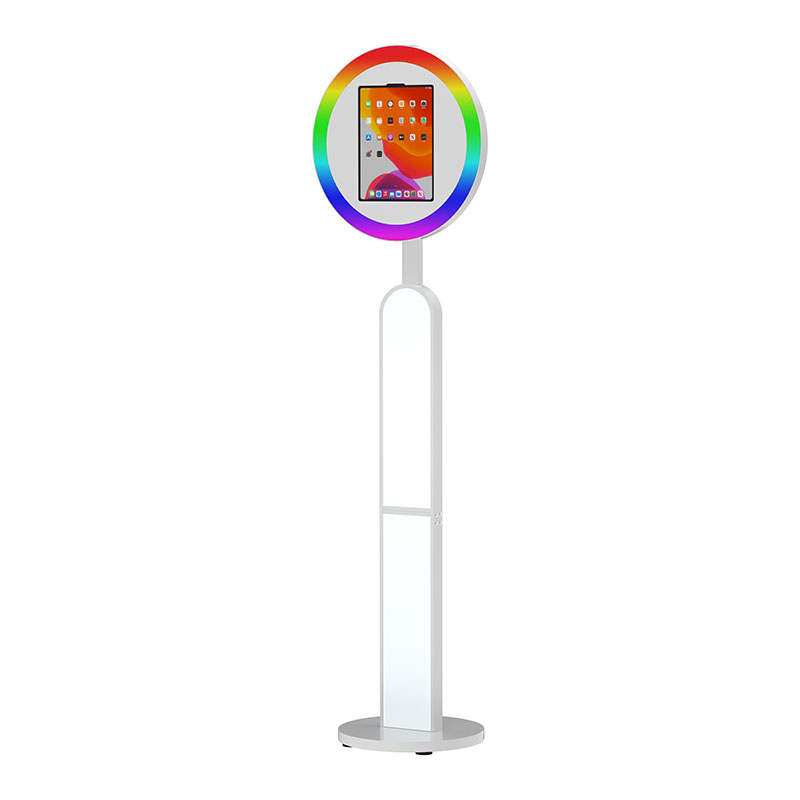
Compatibility depends on the enclosure’s dimensions, tablet opening, camera position, and charging-port access. Two iPads with similar screen sizes may have different button or camera locations. Check the exact iPad model number and generation—not only its advertised screen size—against the booth specifications before ordering.
Yes, provided the iPad fits the enclosure and supports your chosen photo booth application. MemBooth describes its iPad booths as systems that can use customers’ own iPads. Check the device’s physical dimensions, iPadOS version, camera location, charging connector, available storage, and battery condition before installing it.
The front camera lets guests see themselves naturally while posing and usually creates the simplest self-service experience. The rear camera may provide better image quality on some iPad models, but the booth enclosure and application must support its position. Test framing, image quality, and guest interaction before selecting the camera.
Portrait orientation works well for individuals and vertical social content, while landscape orientation provides more horizontal room for group photographs and backdrops. The best choice depends on the camera position, application interface, and intended output. Confirm that the booth enclosure and software support your preferred orientation without blocking the camera.
An adjustable mount helps frame adults, children, seated guests, and groups without moving the entire booth. Tilting the iPad can also reduce empty space above subjects and improve the camera angle on uneven floors. Check whether the booth head offers controlled tilt and whether it remains stable after repeated adjustment.
Kiosk mode keeps the iPad inside the photo booth application so guests cannot open other apps, settings, messages, or stored files. Apple’s built-in Guided Access feature can restrict the device to one app. Permanent or multi-device installations may require supervised Single App Mode through a device-management system.
Install and test application updates before the event rather than immediately beforehand. Disable unwanted notifications, prevent automatic screen locking, confirm camera and photo-library permissions, and turn off scheduled system updates during operating hours. Run a complete test session after restarting the iPad to ensure the selected settings remain active.
Required storage depends on the number of sessions and whether the booth captures photographs, GIFs, boomerangs, or videos. Video and animated content use substantially more space than still images. Clear unnecessary files before each event, check available storage, and estimate capacity by running sample sessions with the actual capture settings.
Keep the booth away from direct sunlight and heating equipment, maintain airflow around the enclosure, and avoid covering ventilation openings. Lowering unnecessary screen brightness may also reduce heat. Test the complete booth in expected venue conditions, especially for outdoor or long-running installations where heat can interrupt charging or application performance.
Yes, when the selected photo booth application supports those capture modes. GIFs combine several photographs into an animation, while boomerangs play a short motion sequence forward and backward. Check the app’s output resolution, storage requirements, branding options, and delivery workflow before including these formats in an event package.